Welcome aboard!
If you’ve been invited by your organisation’s administrator to use Fleet Manager (formerly Spidertracks), the following guide will walk you through getting started.
|
|
1. Accept the Invitation and Set Up Your Account
You should have received an email invite from Fleet Manager on behalf of your Organisation.
Follow these steps to join:
Important: Please use the invitation link to join the organisation. If you create an account on the Fleet Manager website without the invite, your account won’t be automatically linked to the team’s organisation.
2. Log In to the Fleet Manager (formerly Spidertracks) Web Site
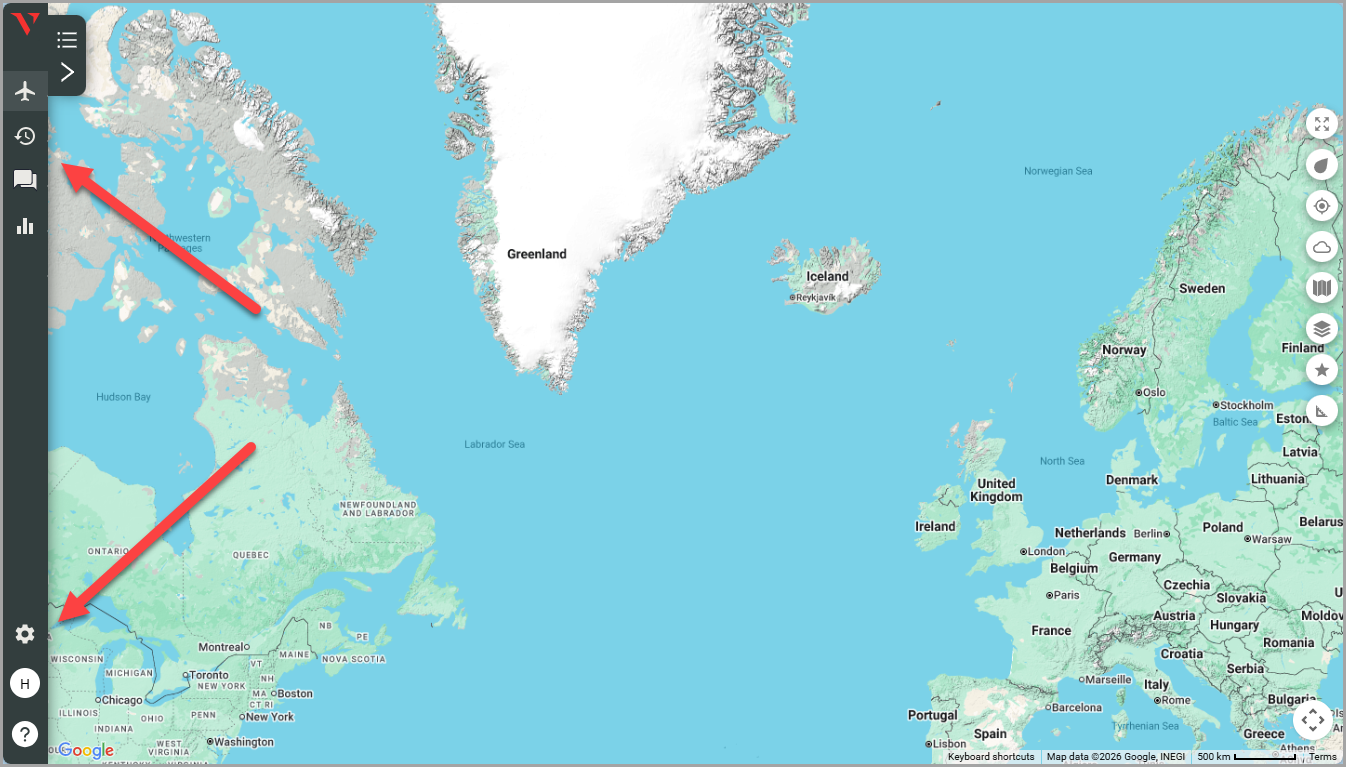
The table below is a quick orientation of the features/pages available in the primary navigation menu of the web application and their purpose:
Navigation Helper |
This is helpful when learning the various feature names and icons. |
|
Flying |
Note: You will not see any Aircraft/Tracks until an Admin has given you 'Visibility' and the Aircraft has flown since then. |
|
History |
Note: You will not see any Tracks until an Admin has given you 'Visibility' and the Aircraft has flown since then. |
|
Spidertxt |
Note: It will not be present if your admin has deactivated the Spidertxt module. |
|
Insights |
The Insights page provides a flight safety and operations insights summary dashboard for fleets equipped with Spider X devices. |
|
Admin |
|
|
Account |
Manage your profile, display preferences and import custom map layers. |
|
Resources |
Find Onboarding Modules, Product Updates and general help in our Knowledge Base, all linked from our Resource Center widget. |
3. Set Up the Mobile App
You can track, communicate, and access key features while on the go using the Spidertracks mobile app. The app is required to use Spidertxt and other in-aircraft features and is free for all Fleet Manager members.
Once you’ve logged into the web platform at least once to set up your profile, you can sign in to the mobile app using the same login details.
Download the app from the Apple App Store (iOS) or Google Play Store (Android).
|
Alternatively, if you are on a PC and want to install the app on your phone or tablet, you can scan the relevant QR code below:
Once installed, open the app and log in.
|
For a detailed overview of the mobile app’s features and navigation, see How to Get Started on Mobile Devices.
Important If you cannot log into the mobile app, make sure you have first logged in on the web as described above. New users must initialise their account via web.
4. Tips for New Members
Role and Permissions: Your role in Fleet Manager (Member vs Admin) determines what you can do. The main features available to the Member role are viewing flight information, using messaging features and receiving notifications.
Support: If you run into any issues, you can reach out to your Organisation’s admin, search the Resource Center, or contact Fleet Manager Support team at support@velloxgroup.com.
5. Detailed Registration Guide
Refer to the following step-by-step instruction on how to register if you have trouble using the more brief guidance above.
1. Click Need an account? Register Here!
2. Fill out the register your account today form.
3. Click Sign Up.
4. Go to your Email Inbox and click on the Verification Link. If you do not receive the verification email, try looking for it in your “bulk” or “junk” email folders. Check the entered email for errors.
The below image is what the email should currently look like:
5. Enter the email address and password you have just used to create your account and click Log In.
Comments
0 comments
Please sign in to leave a comment.